SSH into Intel Edison via USB Tethering (Mac / Yosemite)
These are derived from the instructions posted on Cylon.js “intel-iot” repo README. I have expanded them to make life easier on people.
Originally published on the rexstjohn.com blog
- nodejs
- intel-edison
Originally published at rexstjohn.com on November 16, 2014. Recovered from the Internet Archive.
These are derived from the instructions posted on Cylon.js “intel-iot” repo README. I have expanded them to make life easier on people.
- Download and install the latest HoRNDIS driver
- You may need to restart your computer, I seemed to have to do this
- Plug your Edison in via Micro-USB (make sure BOTH are plugged in)
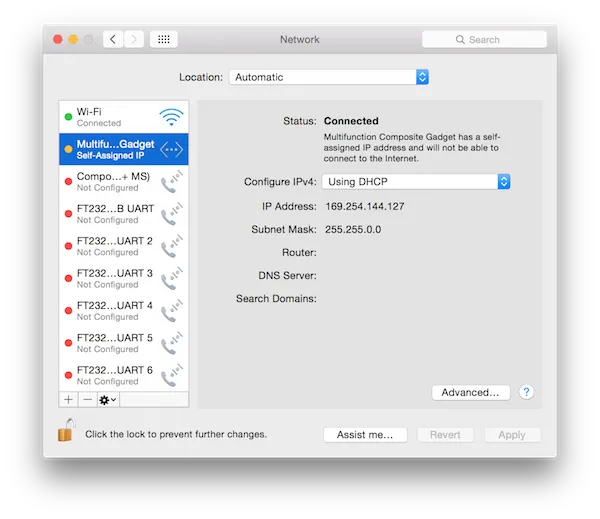
- Open “System Preferences -> Network” on your Mac, you should see this:
Depending on what you named your Edison, you may also see “Multifunction Composite Gadget” if you haven’t named it yet.
NOTE: If the Configure IPv4 option is disabled, click the “Lock” in the lower left hand corner.
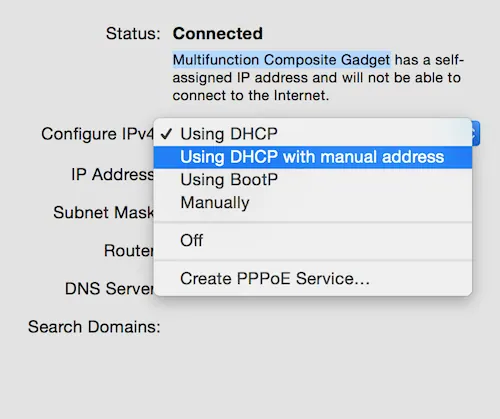
Now select “Configure IPv4″ and choose “Use DHCP with Manual Address” and change it to “192.168.2.1,” which is Edison’s default IP address and click “Apply.”
Next, “ssh root@192.168.2.15″ in a terminal and answer “yes” when prompted.
